折腾红米ax6
此篇记录一下前段时间折腾路由器的经历。哈哈哈哈哈,真是太爽了,路由器这东西,真上头。
📍
选择路由器
我选的是红米ax6,这款路由器,可以说是理财产品了,哈哈哈哈,价格一直涨,二手原价卖。就离谱。
我主要是看重它以下几点
- 芯片好,高通的芯片,散热刚刚滴~
- 支持wifi6
- 穿墙也不错
加上看好碰见小米商城有货,我直接手起刀落。
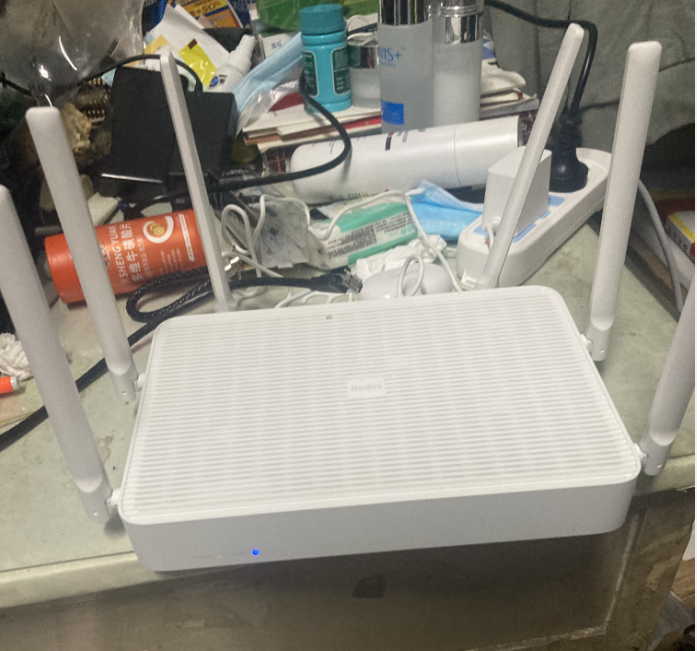
长个样子。
刷openwrt
openwrt一个开源的路由器系统,可玩性强,深受“大家”喜爱,我也不例外,诶~,年轻就是折腾。
我用的openwrt是直接在恩山下载一个网友的。不得不说,英雄所见略同。这个网友和我一样,只有一个需求,就是能科学上网就行啦。
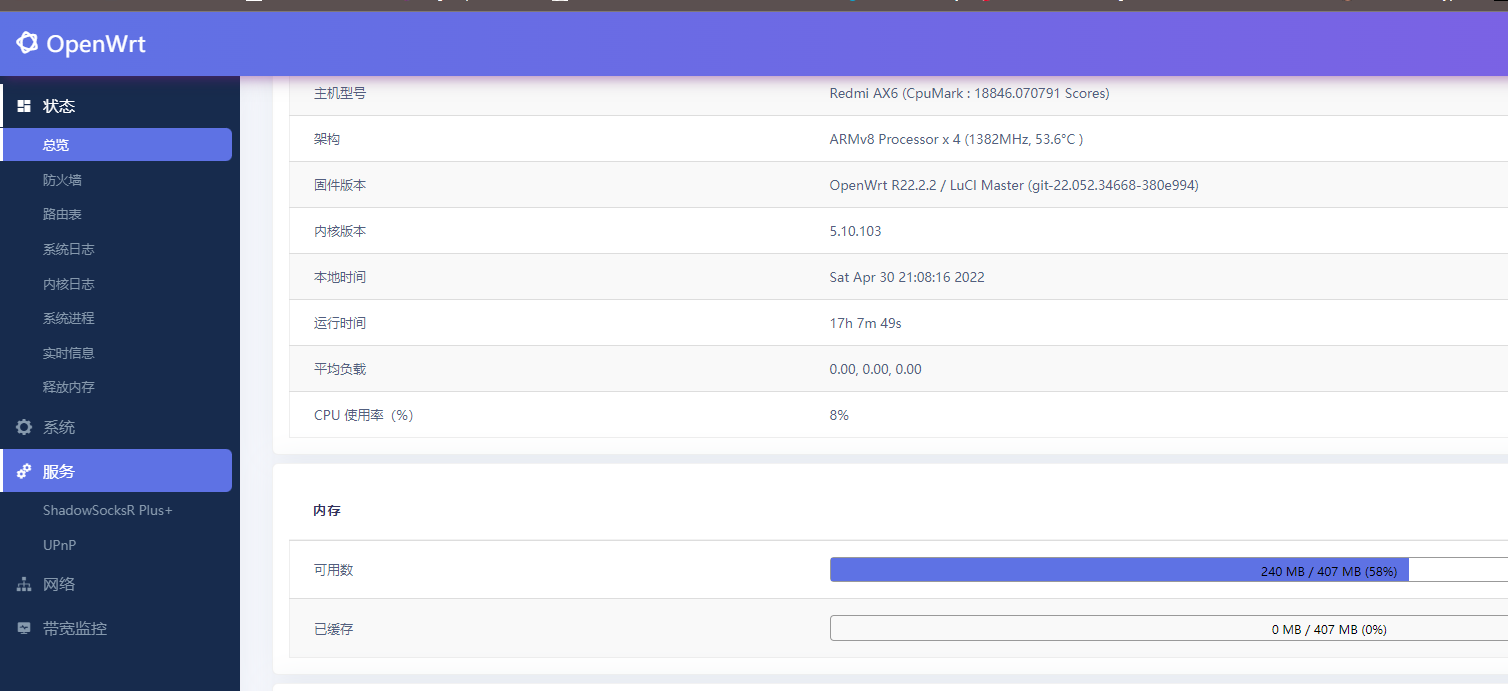
插件这块大家可以自己装啦。
米家的固件实在是苦不堪言,红米ax6跑千M网和玩一样,根本没有压力。我选择openwrt更高的自由度。
解锁SSH
ax6最难刷机的原因就是SSH太难解。
我是参考的b站这位网友给的教程,解锁的。视频链接
我不是特别喜欢这个视频的风格,所以这里我简单概括一下他说的这些东西。
将AX6的固件降级为1.0.18版本
红米ax6解锁需要一个openwrt路由(能上网的)。
用虚拟机搭建一个openwrt系统的虚拟路由,就是开一个虚拟机。配置网络环境虚拟机网络环境
上传wireless.sh文件到虚拟机,执行 sh /root/wireless.sh
#wireless.sh如下
#!/bin/ash
# SPDX-License-Identifier: GPL-3.0-only
#
# Copyright (C) 2020 yyjdelete
# Copyright (C) 2021 Robert Marko <[email protected]>
# Copyright (C) 2021 Tianling Shen <[email protected]>
#
# Original threads:
# Redmi AX6 AX3000: https://www.right.com.cn/forum/thread-4060726-1-1.html
# Xiaomi AX6000/AX9000: https://forum.openwrt.org/t/openwrt-support-for-xiaomi-ax9000/98908/34

info_font="\033[36m[Info]\033[0m"
success_font="\033[32m[Success]\033[0m"
warning_font="\033[33m[Warning]\033[0m"

echo -e "${warning_font} Please make sure your router has wireless support!"
echo -e "${warning_font} Please make sure your router is restored to factory settings (not configured)!"
echo -e "${warning_font} Please make sure you've backed up the network and wireless settings!"
echo -e "${warning_font} Please make sure you've connected the router via *wired ethernet*!"
echo -e "${warning_font} Running this script will change your *network* settings!"
read -p "Use Ctrl+C to exit or press enter key to continue..."

echo -e ""
echo -e "${info_font} Adding xqsystem controller..."
cat > "/usr/lib/lua/luci/controller/admin/xqsystem.lua" <<EOF
module("luci.controller.admin.xqsystem", package.seeall)

function index()
    local page   = node("api")
    page.target  = firstchild()
    page.title   = ("")
    page.order   = 100
    page.index = true
    page   = node("api","xqsystem")
    page.target  = firstchild()
    page.title   = ("")
    page.order   = 100
    page.index = true
    entry({"api", "xqsystem", "token"}, call("getToken"), (""), 103, 0x08)
end

local LuciHttp = require("luci.http")

function getToken()
    local result = {}
    result["code"] = 0
    result["token"] = "; nvram set ssh_en=1; nvram set uart_en=1; nvram set boot_wait=on; nvram commit; uci set wireless.@wifi-iface[0].key=\`mkxqimage -I\`; uci commit; sed -i 's/channel=.*/channel=\"debug\"/g' /etc/init.d/dropbear; /etc/init.d/dropbear start;"
    LuciHttp.write_json(result)
end
EOF

echo -e "${info_font} Changing network settings..."
set -x
# /etc/config/dhcp
uci set dhcp.lan.ra_management='1'
uci del dhcp.lan.start
uci del dhcp.lan.limit
uci del dhcp.lan.leasetime
uci set dhcp.lan.ignore='1'
# /etc/config/network
uci set network.lan.ipaddr='169.254.31.1'
uci -q commit
set +x

echo -e "${success_font} All settings are applied.\n"
echo -e "${info_font} Please now disconnect from this router, and connect to your Xiaomi/Redmi router."
echo -e ""
echo -e "${info_font} For Xiaomi AX3000/AX6000/AX9000:"
echo -e "       Open your browser, access the following URL:"
echo -e "         http://192.168.31.1/cgi-bin/luci/;stok=<STOK>/api/xqsystem/extendwifi_connect_inited_router?ssid=MEDIATEK-ARM-IS-GREAT&password=ARE-YOU-OK&admin_username=root&admin_password=admin&admin_nonce=xxx"
echo -e ""


echo -e ""
echo -e "${warning_font} Restarting network..."
wifi reload >"/dev/null" 2>&1
/etc/init.d/network restart >"/dev/null" 2>&1
打开windows移动热点,这时候电脑就会多出来一个网卡(这个热点的)
把刚刚刷好的openwrt桥接到windows热点上。ps:热点必须联网
登录AX6,复制当前AX6后台链接中 “stock=” 后面的字符串;
替换链接中相应的数据后,复制到浏览器点击回车,解锁SSH;
http://192.168.31.1/cgi-bin/luci/;stok=/api/xqsystem/extendwifi_connect_inited_router?ssid=op&password=12345678&admin_username=root&admin_password=password&admin_nonce=xxx 提示解锁成功之后,再次登录ax6后台,5G频段路由密码,就是SSH密码了
到这里SSH就解锁了。
刷入openwrt
红米ax6有两个系统分区,你在0区,就把openwrt刷到0区,反之刷到1区。
就是说,你在0分区刷,固件会上传到1分区。你在1分区刷,固件会上传到0分区。所以刷之前要切换分区先。
我这里没扩容,因为第一次刷的那个路由器变砖了,我在网上没找到很完善的扩容方案。不扩容只能刷30m以下的哈,超过会变砖,用小米官方的刷机软件可求回来。但是扩容刷机失败,不能用小米官网的刷机求了。。。
这样就不会出现变砖的情况了。
下面以1分区举例
检测当前分区
nvram get flag_last_success切换分区
nvram set flag_last_success=0
nvram set flag_boot_rootfs=0
nvram commit
reboot
把openwrt的固件上传到/tmp下面,第一次上传.ubi后缀的文件的哈
![image-20220430212942511]()
刷入固件
ubiformat /dev/mtd13 -y -f /tmp/你上传的固件文件名切换分区
nvram set flag_last_success=1
nvram set flag_boot_rootfs=1
nvram commit
reboot
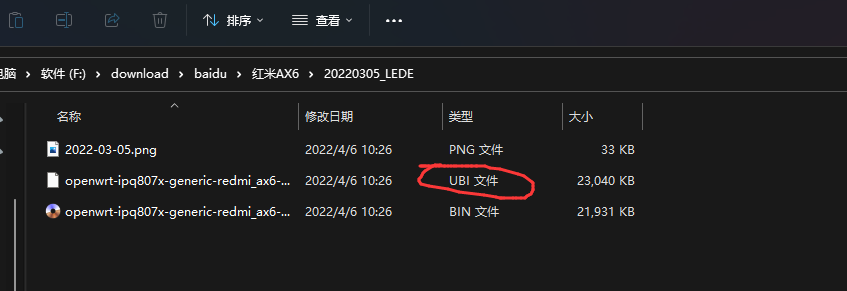
结束。
剩下的就是切换不同系统的代码了
OP切换到小米系统
fw_setenv  flag_last_success 0
fw_setenv flag_boot_rootfs 0
reboot

小米系统切换到OP
nvram set flag_last_success=1
nvram set flag_boot_rootfs=1
nvram commit
reboot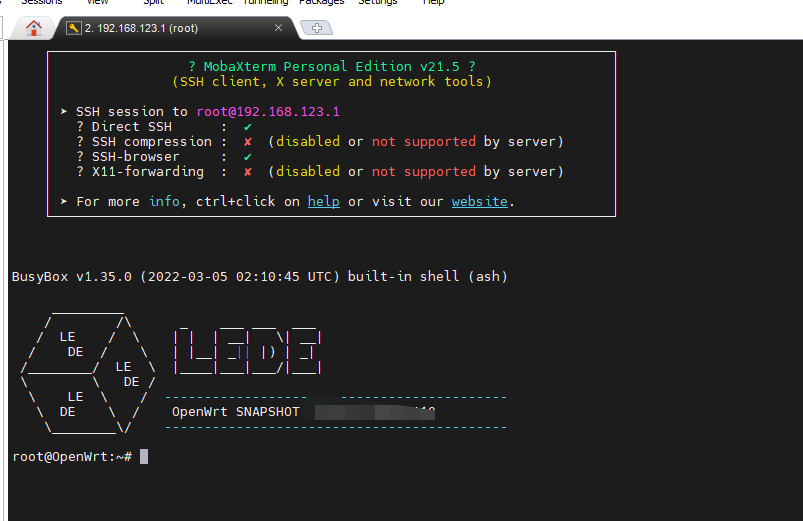
我想解锁完ssh之后就已经实现完全自由啦。还有什么是比一个linux更自由的呢~
接入校园网
河南师范大学的校园网,狗的一,一个账号一个设备。这能行吗???咱就是说,一百个不同意。
ax6有两个频段,5G和2.4G,学校的也是分这俩个频段。
这里要科普一下这个5G和2.4G频段哈。这里是频率,不是我们手机上说的那个5G时代哈。
5G频段在信号强距离时,抗干扰能力远大于2.4G,其下载速度和上传速度明显哈。
2.4G频段信号范围比较广哈,穿墙效果更好。
其实从物理也可得出来啦,5G频段,频率大了,波长短了,衍射效果不好,粒子性更强。波长大的,会更易绕过墙壁等障碍物。
我所在的寝室校园网5G很好。
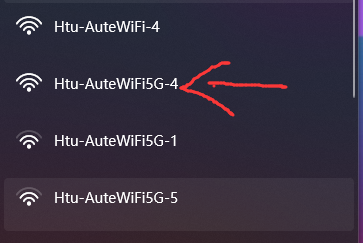
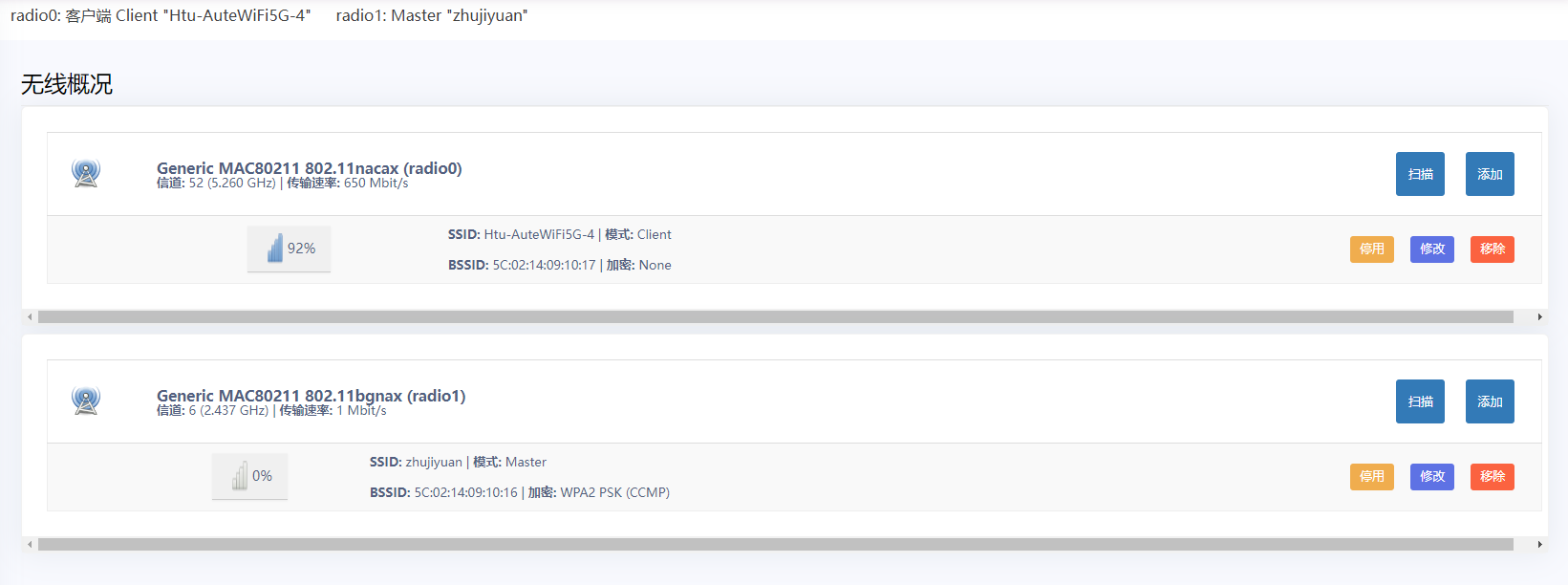
我的方案是,用路由器的5G信道,连接到校园网5G网上,在ssh连接路由器,curl命令,发送一个post请求,完成web认证。之后用路由器的2.4G频段就可以上网了。
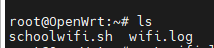

在定时运行这个shell脚本,就可以让路由器一直使用学校的校园网啦。
速度与直连校园网无差别。十分nice
唉,先到这吧,学校没有ipv6,难受了,加上我的笔记本没法插网线,没法远程开机,难受~。让我们上了研究生再写这篇文章吧。